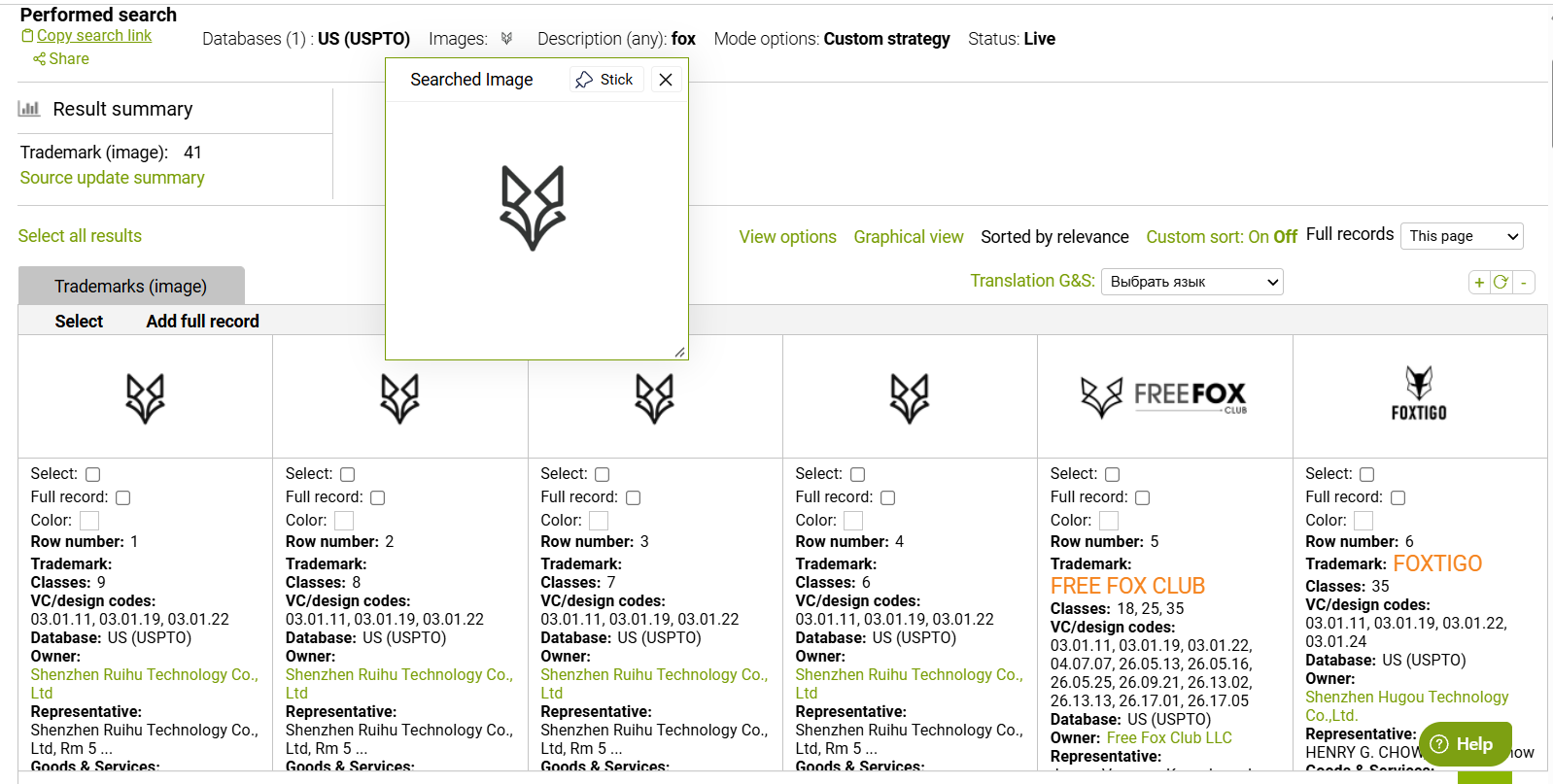
For Image searching, Markify ProSearch platform supports AI-driven image search, Vienna/Design code search, and for certain databases also the Description search.
TABLE OF CONTENTS
Image-based search
To perform an automated image search, please upload the logo in one of the applicable image file formats:
 The upload functionality allows rotating, cropping, or deleting the image before starting the search:
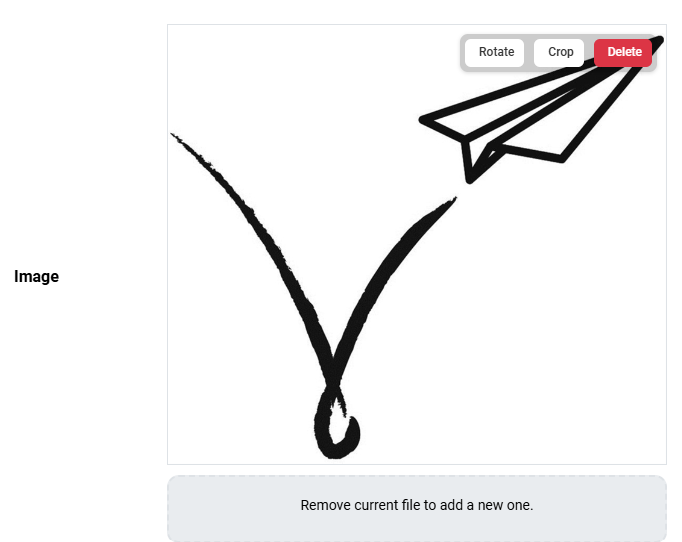
Please note that for combined marks, we usually recommend performing two separate searches: one for the logo, and a separate search for the verbal element, so that two Markify algorithms can perform their searches independently.
Please check the two related articles that explain the scope of Image searching in more detail:
Your results set will have an automated Risk level ranking: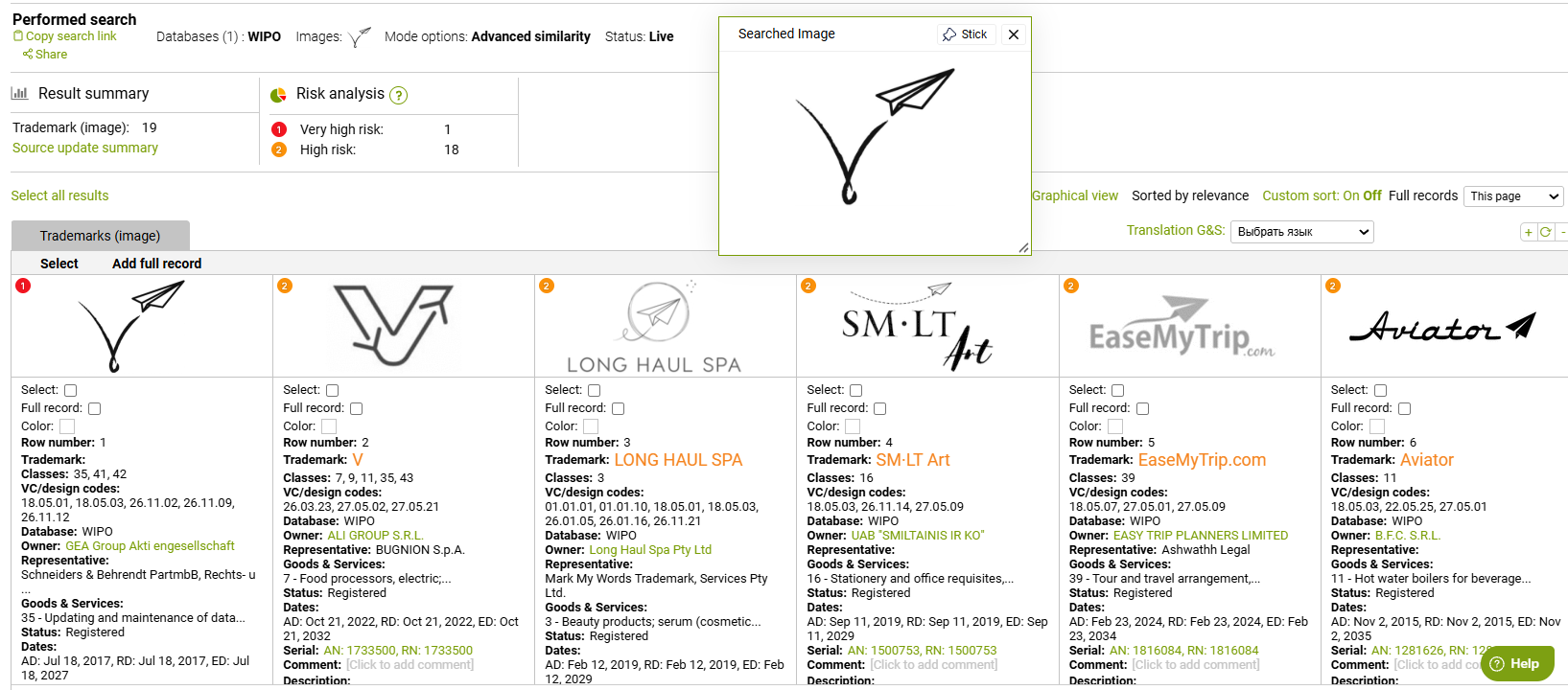
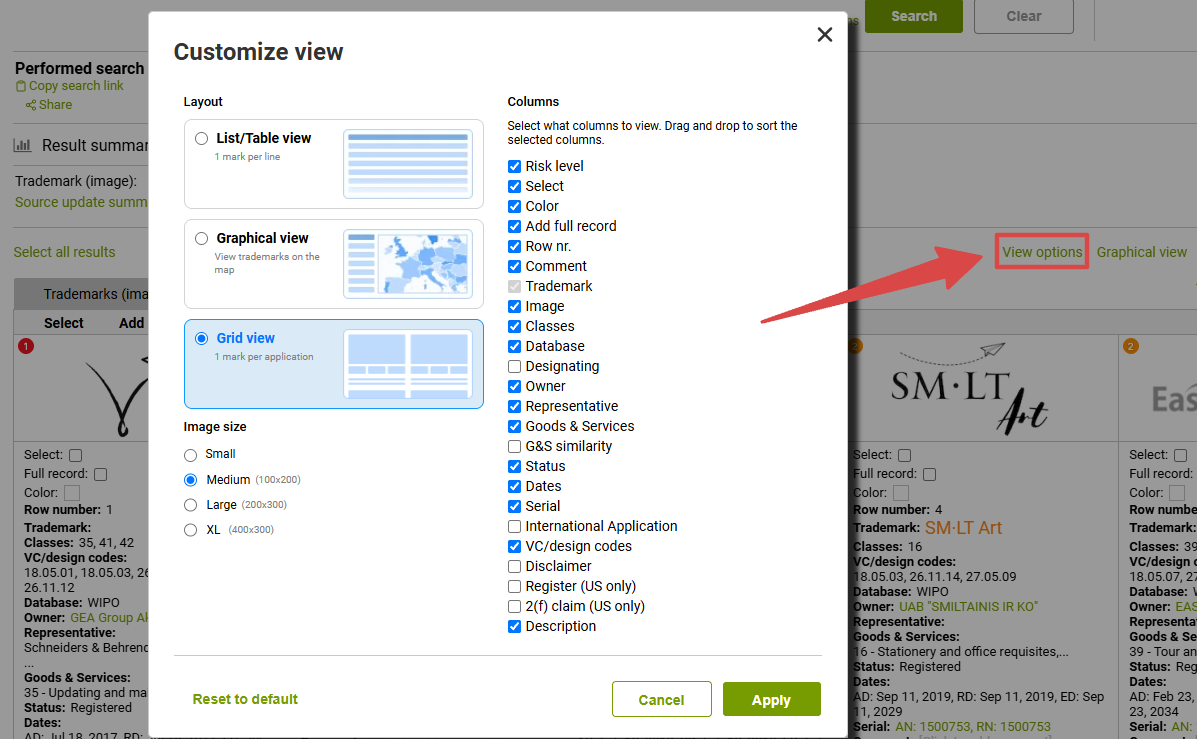
By default, the page layour is in Grid view, but you can also switch to the List view/Table view with the View option:
Vienna codes and US Design codes
You can also search by Vienna/ Design codes in ProSearch:

It is possible to type the code directly into the parameter string, but we do recommend using the pop-up menu to ensure the correct format. Besides that, there is a search search string that helps to find the necessary codes:

Please note the US classification for design codes requires that you switch the radio button when selecting the neessary codes:

If your search is based on the Vienna codes only (without an actual image attached), you receive an entire dataset associated with those codes (note also that it only works in a Custom strategy mode):
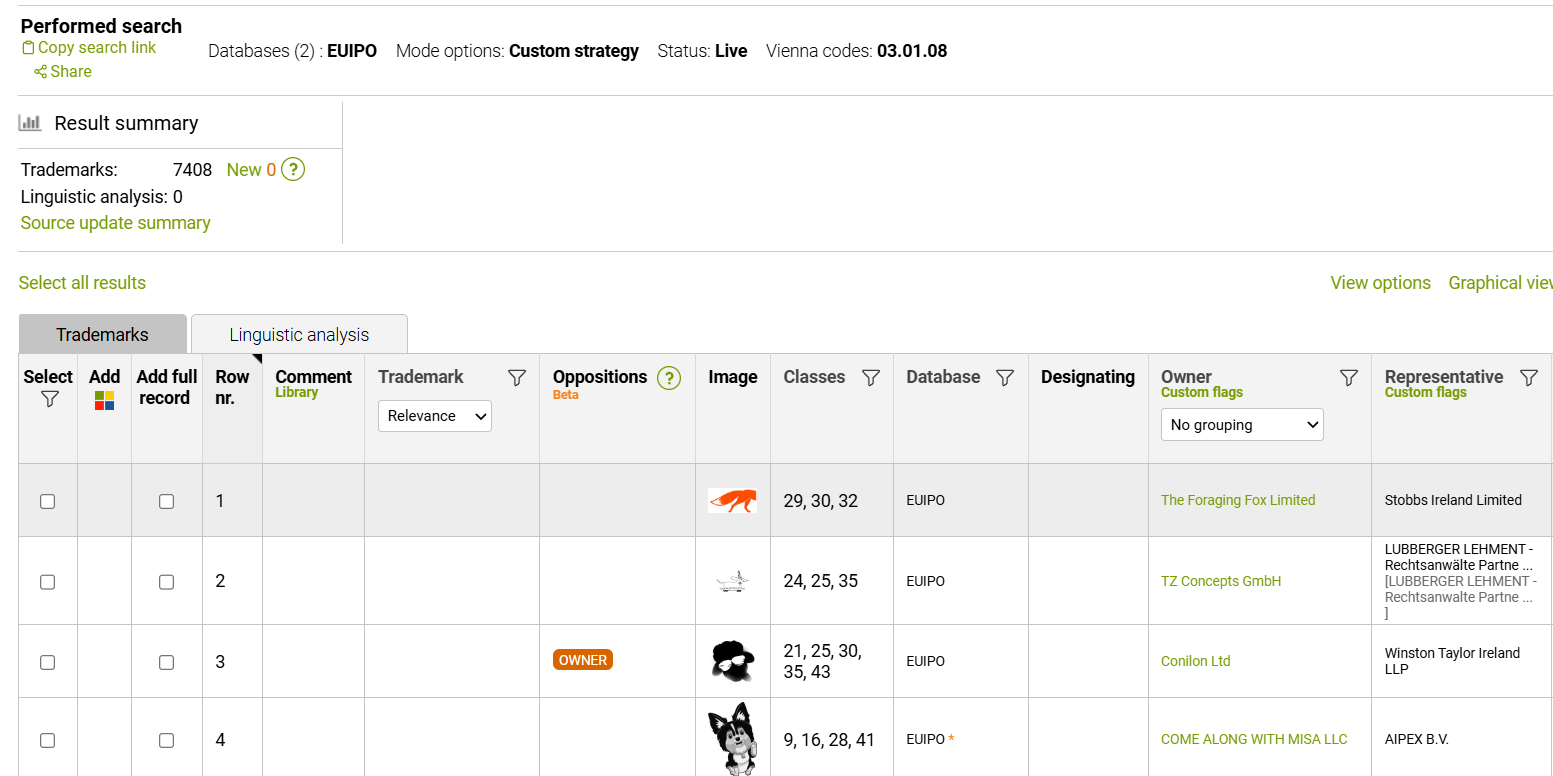
But if both the uploaded Image and Vienna code parameters are used, your search scope becomes more narrow. The returned results must both be similar to the used Image but also be associated with the specified vienna code:
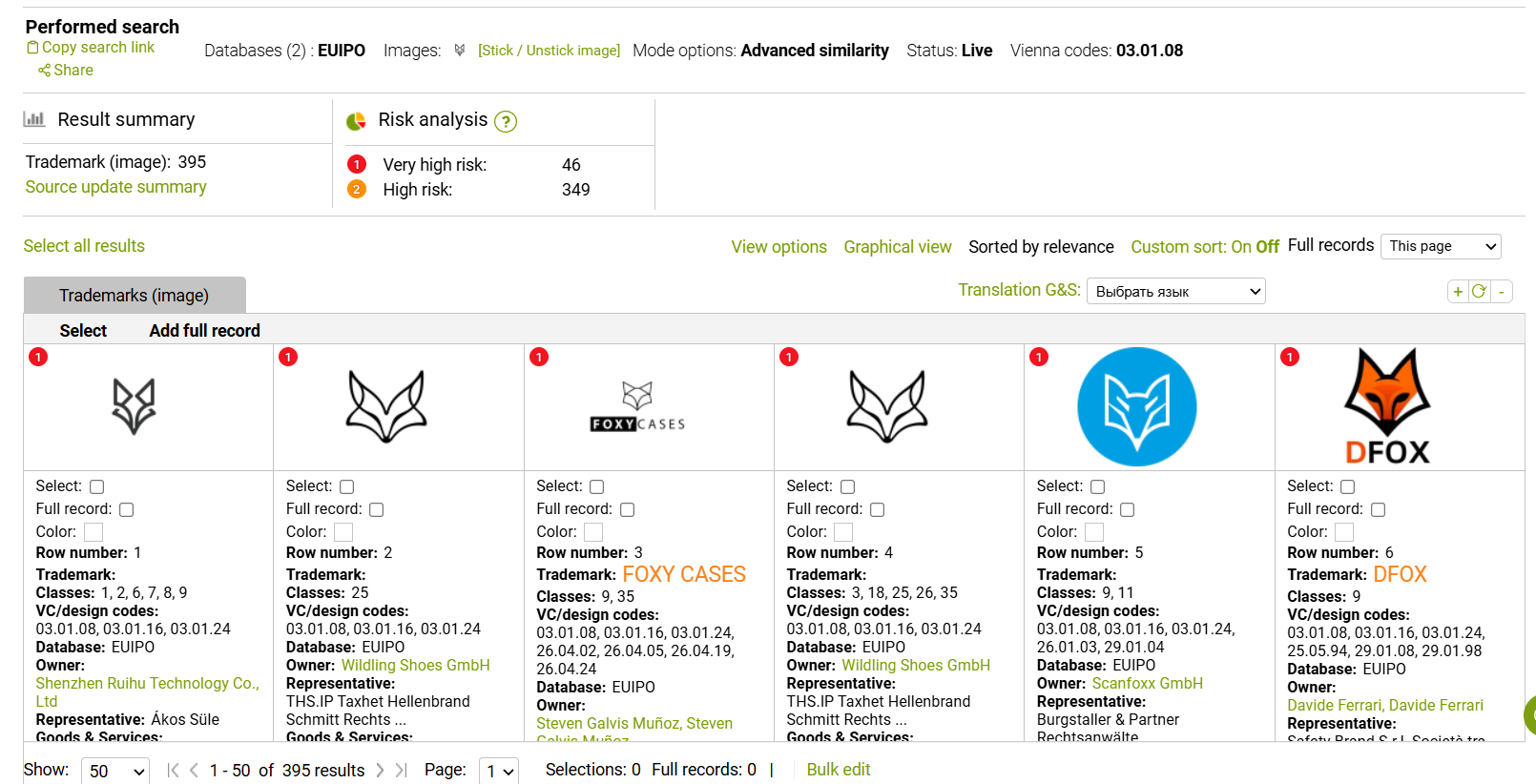 (Note that this search is performed in Advanced similarity mode, and Vienna codes are treated as an additional restriction; the total amount of results is lower)
Description
Description string allows listing the keywords used in official TM records descriptions (note that this is only applicable for Hong Kong, Japan, Singapore, Taiwan, EUIPO, Italy, France, United Kingdom, Sweden, Canada, USPTO, Australia, and Chile):
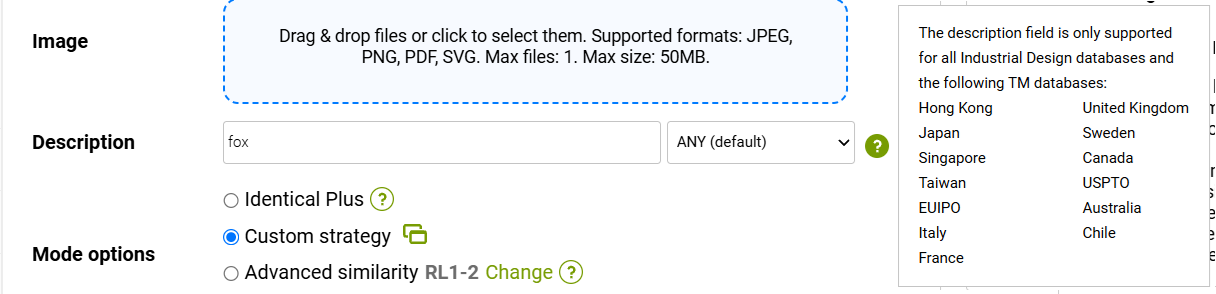
If you enter several keywords, it is possible to switch beween ANY or AND modes:

When searching by keyword without an Image file, your result set will include all Trademarks that have that exact keyword in the description:
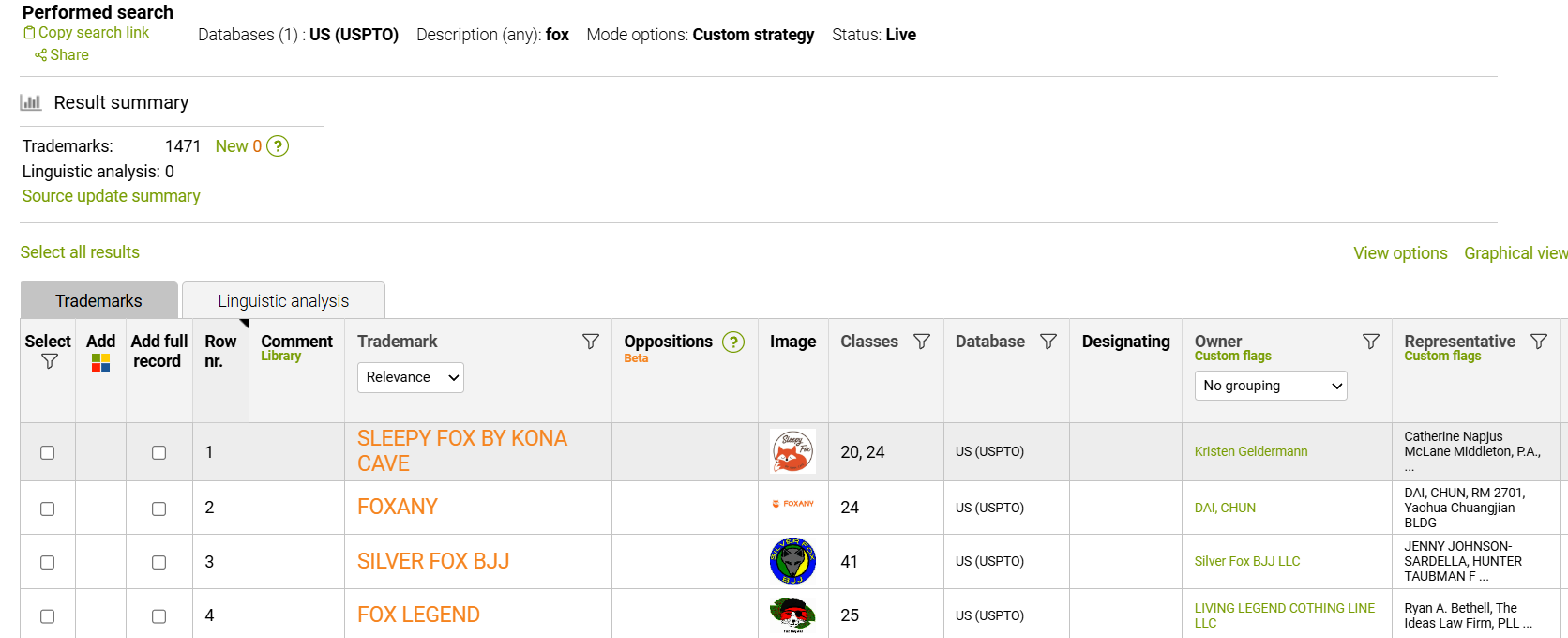
Please note that a search without Image file (or without a wordmark) can only be performed in a Custom search mode.
Here you can see an example of such description:
When combining a logo search with description parameter, you search scope becomes more narrow: the image must be visually similar but also the TM record must contain the relevant keyword: