
This article is dedicated to Bulk search report layout & functionality for reviewing & filtering the results via folded and unfolded view
TABLE OF CONTENTS
Initial report layout/ Folded view
Once you open your Bulk search report, you can see the following information:
- Ordered search report lists the report name, parameters, and the report date
- Results summary indicate whether there are names that produced no hits, and specify the total number of results in a report
- Distance score lists the results split by distance ranges (where 100% is an identical result)
- Created reports section will list your custom reports, once you create any

Your results are presented in a form of the spreadsheet where the first view is a summary of the results per each searched brand.
For example, for FENTANYL above, you can see that there are 348 Results within 9 Trademark databases and 19 Pharma databases.
At the same time, POCA score (applied to the results that were produced by Markify algo) indicates that there are those with ranges between 18 and 100. Distance score, which is Markify proprietory ranking method, also shows that there are results from 18 to 100 score in this report. High scores are highlighted in red, and signal that there are highly similar results in this report.
Domain results section displays whether checked domain names are free or taken.
Above your results list, you have a link to Show no hits only:

Unfolded results
If you click on any result name, report gets filtered by this name and results are unfolded:

Within this view, you can further do the following:
- Full records - upon clicking on the name or number
- Unfold all Goods and services at once (otherwise you can click on each particluar G&S cell and unfold one by one)
- Choose between the original and English goods & services translation
- Open Goods and Services custom flags library and add colour tags to highlight certain keywords in your reports (you can read more on this functionality here)
- Open Owner identity card to see main TM activity details on the company:

You can also translate Goods and Services into a language of your choice (beyond English) by using the widget above your results spreadsheet:

Moreover, you can select several searched names and unfold the details for all of them in one click:

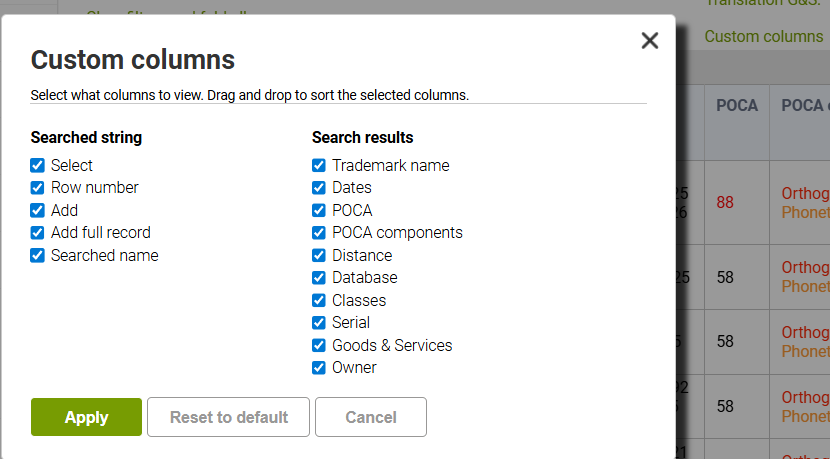
Also, the unfolded view allows adjusting the columns of data that are displayed - click on Custom columns link above your results spreadsheet, and tick / untick as per your preference:
Filters
There are two main filter menus for Bulk search:
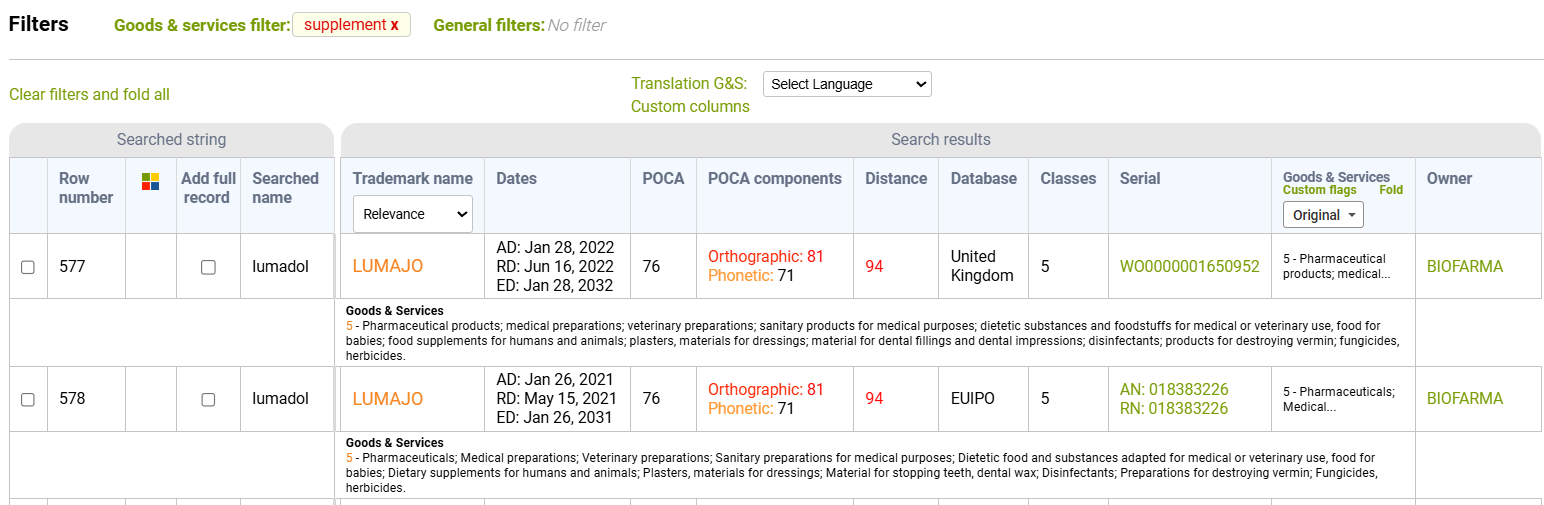
- Goods and services filter that allows listing the keywords (wildcard-sensitive) and saving them into a library, and you can also translate the keywords:

Once G&S filter is applied, relevant results are unfolded:
- General filters allow restricting the results based on result name, owner, class, searched name, or database:
When filters are applied, they can later be removed one by one upon clicking on the red cross, or you can use the 'Clear filters and fold all' link:

Result selection & color tagging
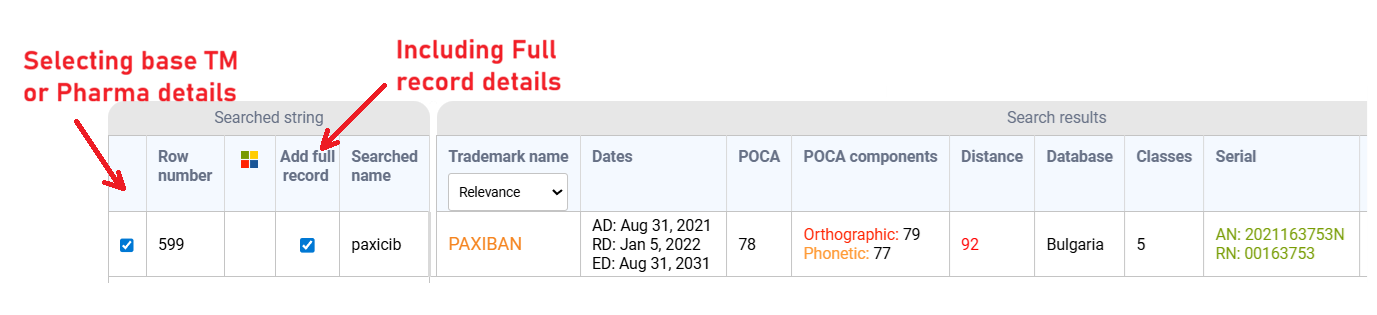
For results selection, you will see two rows of checkboxes where the first one (Select column) let's you tick the results where you would like to export basic details
And the seconf row of checkboxes let's you separately decide for which ones you would like to extract the full recors:
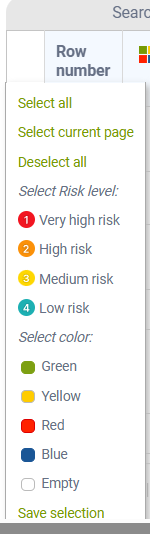
There also are quick actions that you can see upon hovering over these column headers:
Also, you can add color tags to the results to highlight certain records:

If you apply colors, it is then possible to sort/group results by those colors. You can just define what sequence they should have (hover over the color column header to see this menu):
