
This article describes the mechanism & functionality for creating custom reports
TABLE OF CONTENTS
Selecting folded vs unfolded results
When selecting unfolded results, your custom report will include all of the results associated with those names:

But if you unfold and only select certain results, your export will only include those:

After the relevant resutls are selected, please click on the green Customize and download button, and in the pop-up menu, once again on the Create button:

Configuration menu contains 3 sections with details that you can unfold clicking on the 'Show' links.
The system automatically memorizes your latest setting to reuse with the next reports.
Here is what you can adjust:
- Level of details
This section allows including or excluding various components of your report:

It is necessary to keep the "Add full record" checkbox ticket in order to have them in your exported details.
You can then select whether it should be done specifically for the results that have that tick on "Add full record checkbox, or also for those results that are selected via Select checkbox for base records

If you untick this option in Level of details, your report will exclude the full record details even if they were originally selected in your online report.
- Branding
At the Branding section, it is possible to choose between non-branded reports, Markify branded, and Custom branding, where you can upload your logo and other details:
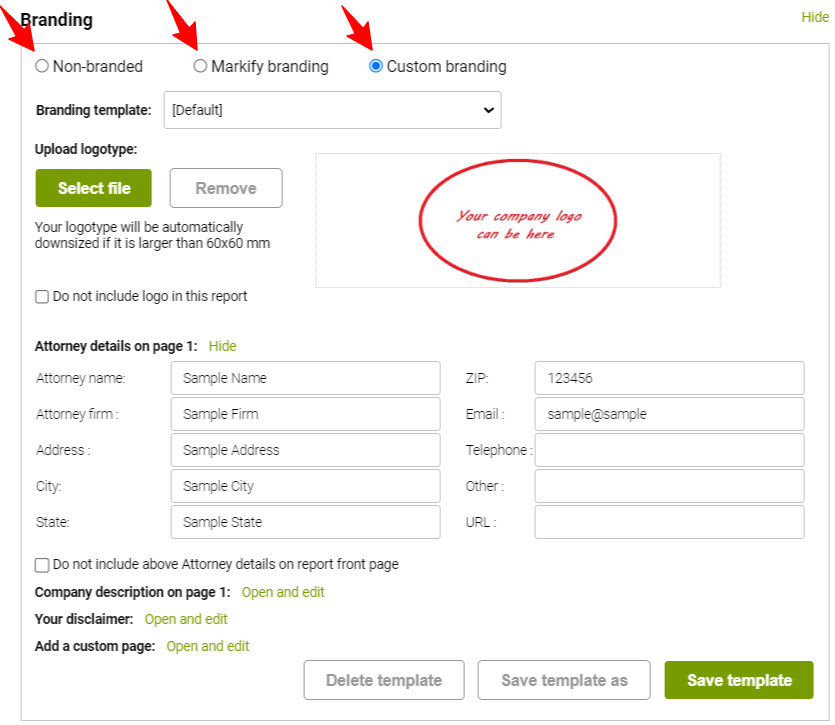
There also are sections for company description and disclaimer.
With the custom page option, you can use basic formatting tools to write your opinion or extended comments and include that in your custom report:

- Document
Here you can choose between one of the file formats, and change the file name:

When ready with the configuration, please click on Create button and your report will be generated:
