Trademark Watch – User Roles and Permissions
This section explains the division of user roles and rights within the same client group at Markify. It describes the rights of Basic users, Admins, Primary users, and the new Watch Master role, within Word and Image Watch services. The explanation below is written for end users and reflects how the roles behave in the UI (Manage and Reports pages) and via API.
TABLE OF CONTENTS
- Basic user
- Admin user
- Primary user
- Watch Master (new role)
- Autonomy of results selection and results export
- How to request Watch Master rights
- Watch Master and API usage
- Log of action and transparency
Division of roles within one client group
Within one client group at Markify, users are divided into several roles. Each role defines what a user can see and manage when working with their own watches and those owned by colleagues.
Basic user
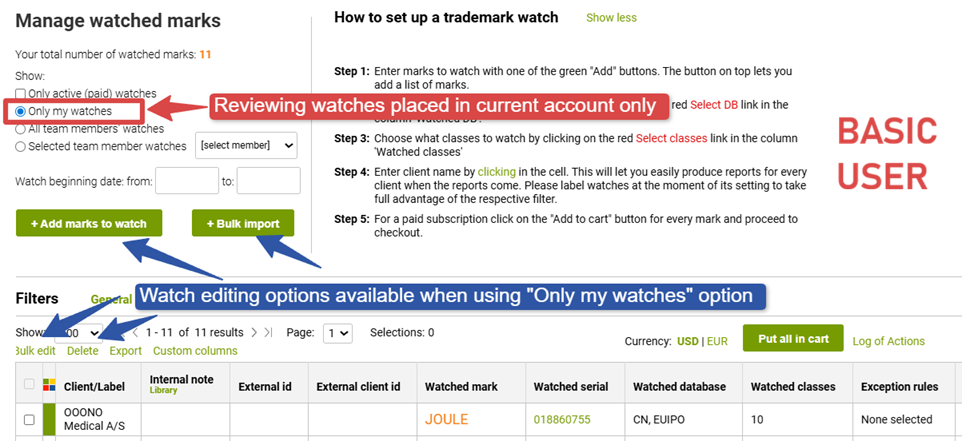
Basic users can work with their own watches and view colleagues’ watches and results when sharing is enabled (reading rights only)
Basic users can:
- Manage their own Word and Image watches (add, edit, delete, activate)
- View colleagues’ watch portfolios and reports
- Add colors and comments to colleagues’ watch report results
- Create custom reports with colleagues’ report results
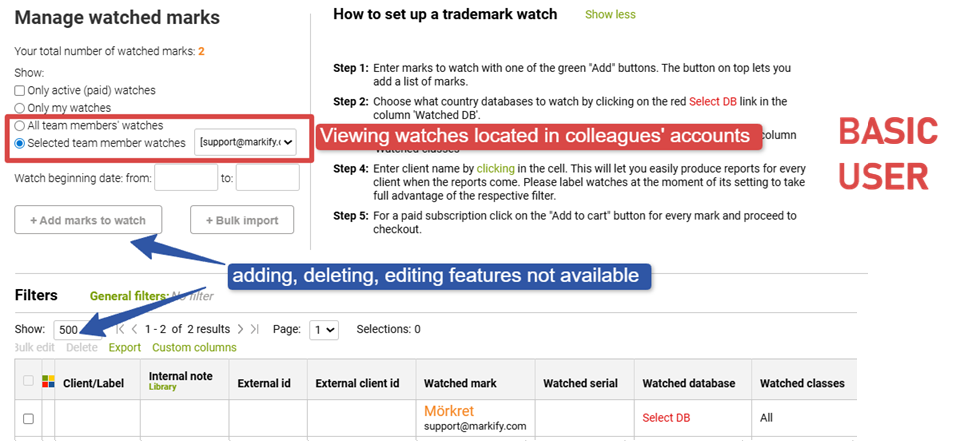
Basic users cannot:
- Edit or delete watches owned by other users
- Create watches on behalf of colleagues
Admin user
Admin users have extended rights compared to basic users, mainly related to maintaining watch information for colleagues within the same client group. There are no limits on the number of Amin users per group.
Admin users can:
- Manage their own Word and Image watches (add, edit, delete, activate)
- Edit a limited set of fields for colleagues’ watches (for example Client/Label or notes)
- Add colors and comments to colleagues’ watch report results
- Create custom reports with colleagues’ report results
Admin users cannot:
- Add new watches on behalf of other users
- Fully manage colleagues’ watches as their own
Primary user
A primary user is the main person within a client group that has more rights than the above two. By default, there is one Primary user per group. (exceptions are possible)
Primary users can:
- Manage their own Word and Image watches (add, edit, delete, activate)
- Edit an extended set of fields for colleagues’ watches (like Client/Label, notes, etc)
- Delete watches owned by colleagues’
- Add colors and comments to colleagues’ watch report results
- Create custom reports with colleagues’ report results
Primary users cannot:
- Add new watches on behalf of other users
- Fully edit colleagues’ watches field by field
Watch Master (new role)
Watch Master is a new role introduced for centralized management of Word & Image watches. A Watch Master can create and edit watches owned by other users within the same client group, both in the UI and via API. There are no limits on the number of Watch Master per group.
Watch Master can:
- Manage their own Word and Image watches (add, edit, delete, activate)
- Create/Edit/Delete Word and Image watches on behalf of other users
- Edit all allowed fields of colleagues’ watches
- Use bulk import and bulk edit for shared watches
- Add colors and comments to colleagues’ watch report results
- Create custom reports with colleagues’ report results
Watch Master cannot:
- Activate watches on behalf of other users
(This means that they can configure watch parameters, but account owner still must log in to activate the watch)
Important note: When a Watch Master manages a watch, the ownership of the watch does not change. The watch still belongs to the original user, but the Watch Master acts on their behalf.
Moreover, for all types of users, to avoid conflicting actions, we keep the autonomy of results selection and results export. This means that ticked checkboxes and created custom reports only are visible for an individual even if action is performed in someone else’s account.
e.g. user A who is reviewing watch results in User B account and selects results, doesn’t see the selections of user B, and user B doesn’t see selections by user A – they can work completely independently (collaboration can be achieved through colour tags and comments that are synchronized between the users). Same concerns custom reports – you only see those created by you, even if doing so in a colleagues account.
How to request Watch Master rights
All roles can be requested by contacting Markify’s support@markify.com.
Provide the user's email address associated with their account at Markify and the role you want them to have.
How the UI changes for Watch Master
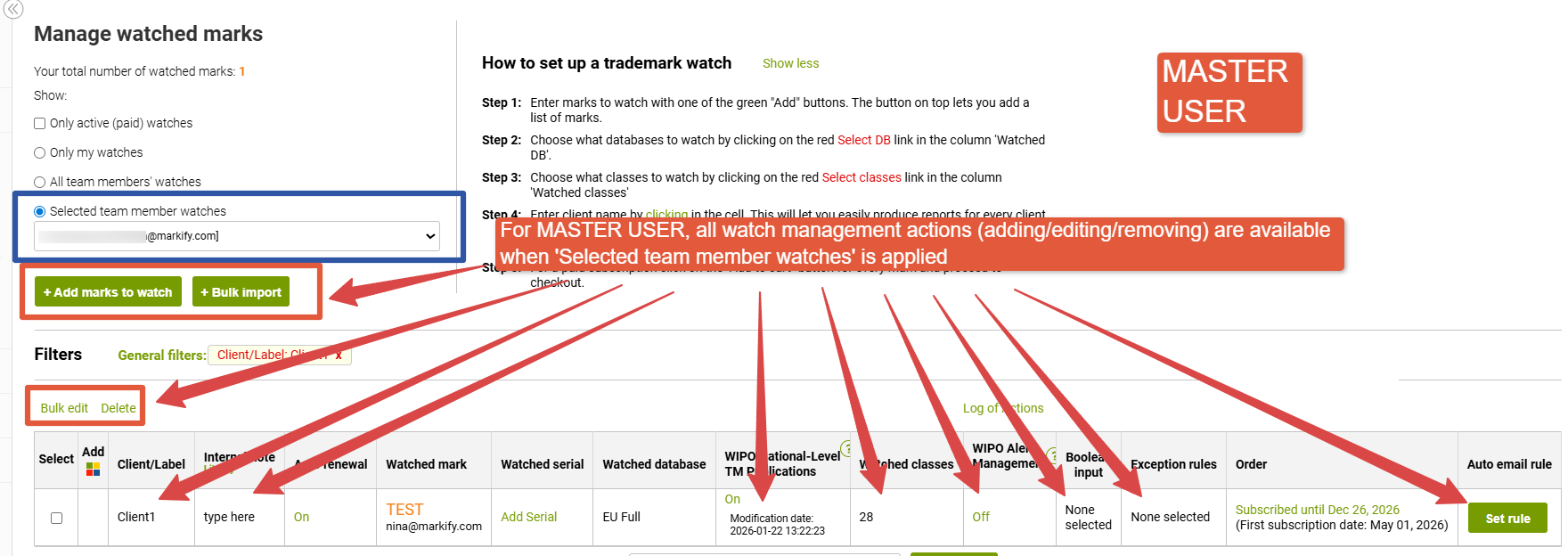
On the Manage and Reports pages, Watch Master functionality becomes available when the option “Selected team member watches” is used.
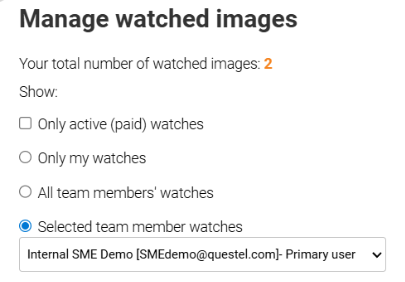
Manage page:
- Add/Edit/Delete buttons are enabled for colleagues’ watches
- Bulk import and Add actions are available for team member watches
- The selected team member is clearly indicated, together with their role
Reports page:
- Watch Master can view reports for all team members’ Word and Image watches
- All standard actions (filtering, hiding, selecting, reporting) are available
- The role “Watch Master” is shown next to the team member name where applicable
Watch Master and API usage
For users who manage watches via API, the Watch Master role allows managing watches for other users using one API key.
When creating, editing, or deleting Word or Image watches via API, a Watch Master can specify the target user. If no target user is specified, the API behaves as basic and applies actions to the authenticated user only.
Supported API methods:
tmwatch/imagewatch - POST - add watch
tmwatch/imagewatch - PUT - edit watch
tmwatch/imagewatch - DELETE - delete watch
Scope - {userid} => if empty applies to the authenticated user, if provided applied to the specified user ID. Not possible to use the scope ‘ALL’. PUT/DELETE works in combination with the watch ID.
tmwatch/imagewatch - GET - retrieve watches
Scope - {userid} => if empty applies to the authenticated user, if provided applied to the specified user ID. Possible to use the scope ‘ALL’.
API responses clearly indicate the watch owner, ensuring transparency when actions are performed on behalf of another user.
Response
{
"response": {
"result": {
"id": 1111111,
"watchOwner": "test@markify.com,
"ordernumber": "2222222"
}
}
}
Note that watch POST method automatically activates created watch, so in this case, through the API connection, watch Master can activate the watches (unlike the user interface where it is only possible to create/configure a watch for the watch master, but not activate it)
Respective errors will be shown when data provided in Watch ID and Scope will not match:
{"error": "400: Watch not found"}
{"error": "403: Users are not in the same client group"}
Log of action and transparency
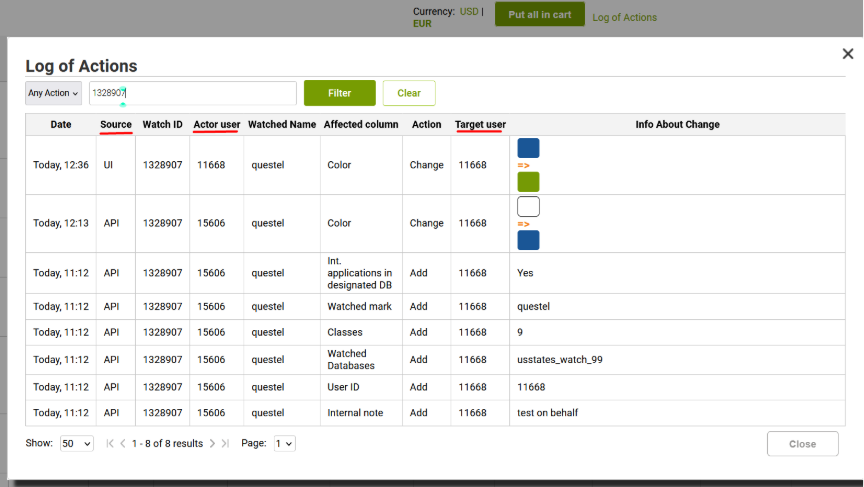
To ensure transparency, all actions performed on the Watch Manage page are clearly recorded in the Watch “Log of action”. With the introduction of the new ‘Watch Master’ role log was updated with three more columns which allows users and support teams to clearly see who did what, when, and on whose behalf.
Source of action (UI or API)
Actor user (ID who performed the action)
Target user (whose watch was affected)