
The multi-step review workflow for Daily watch supports the scenario where the report review is performed in several stages (possibly by multiple stakeholders), and it is important to clearly define the ownership of each step.
TABLE OF CONTENTS
- User roles
- Report sharing settings available for each role
- Report stage control functionality
- Report stage workflow
- Report changes history
- Hide/unhide review scenario
User roles
The users get assigned one of the following roles:
- Owner / Watch Owner - the user who has watches in their account, and holds the full access to watch functionality
- Deselector - the users who does the first-level review of the watch report (highlighting, hiding, or adding results to the ignore list). In a classical scenario, doesn't have watches in their account, but uses the report sharing to perform the preliminary check within Owner's account.
- Supervisor - the user who does the second-level review and submits the report, marking it as reviewed.
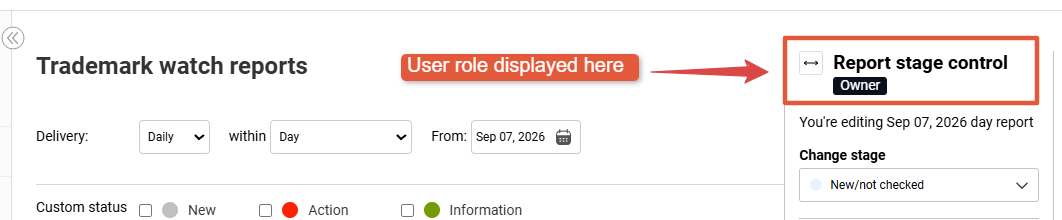
Users can see their own role at the top of the Wordmark or Image mark Reportsbpage, at the Report stage controlbmenu:
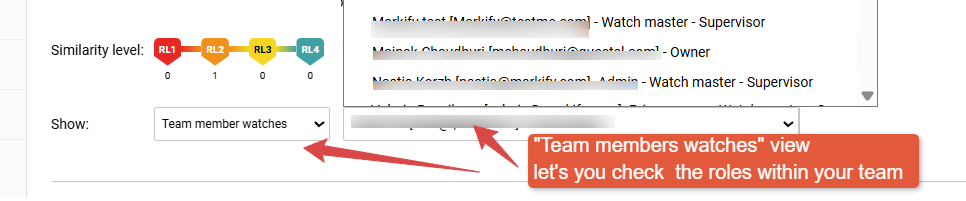
Teamwise, it is possible to see the roles by by selecting Team member watches option in the Report sharing/Show view. The dropdown with team members will each specify their role:
User roles are set up by customer support team.
Alternatively, you can request that support grants one of the accounts with the role-control functionality.
In that case, they see a green "Assign a role" link next to "Team member watches" in the Show section and can adjust the setting.
Report sharing settings available for each role
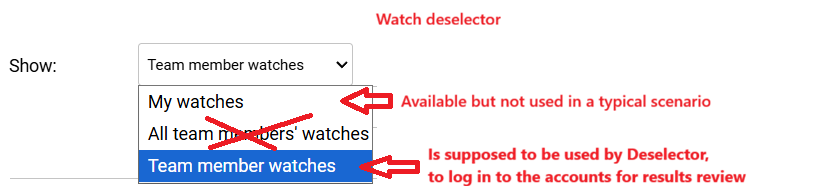
Since it is supposed that Deselector only reviews one report at a time, they are able to only view their own report (even though the classical scenario doesn't suppose they have watches), or more importantly, review Selected team member Watches, where an additional dropdown menu supposes that a specific account is selected.
"All team members' watches option is not available for Deselectors - this is intentional, to not have several deselectors work with the same results simultaneously.
If your team would only have one deselector, it will still be necessary to review the results from one account at a time.
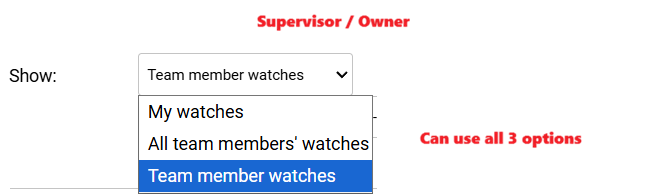
Owner and Supervisor can use all 3 view options: My watches, Team members, and Selected team members.
Report stage control functionality
Report stage control has been designed to help users easily identify work progress and ownership, as well as monitor and quality control every stage.
At the top of this menu, each user can recheck their role, as well as see the report date that is being worked on.
For the Periodicity layout, we recommend to stick to the "Day" option, as this option allows selecting any day or custom timeframe for a review (please be careful with the latter - selecting more than one day, you will also be sumbitting for for the entire period at once, so the Day option is considered more "safe").
Under the "Day" mode, calendar shows one date per day with a colored background matching its current stage, so progress across many days can be seen at a glance without opening each one. A day where both Deselection and Supervision are complete is shown in a distinctly darker shade than a day where only part of the work is done.
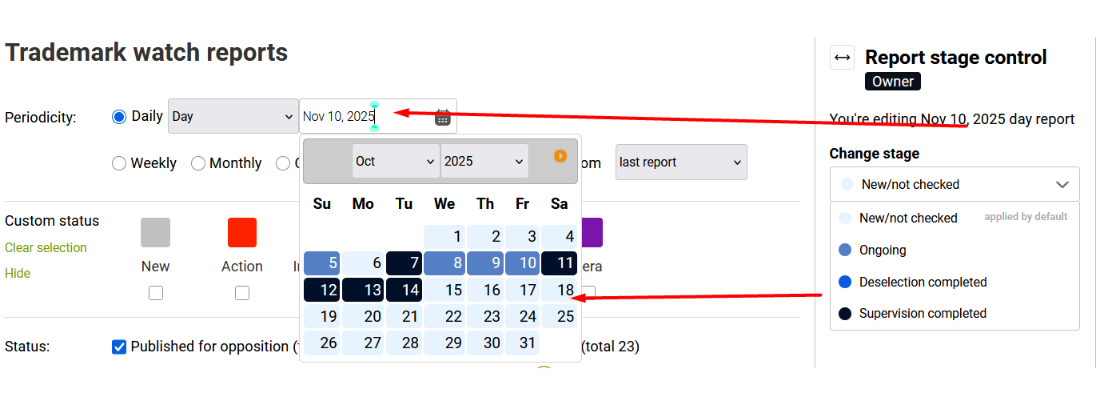
The report review stages are:
- New/not checked — the default stage: results have not yet been reviewed at all.
- Ongoing — should be manually set by Deselector when they start working on the report for that day
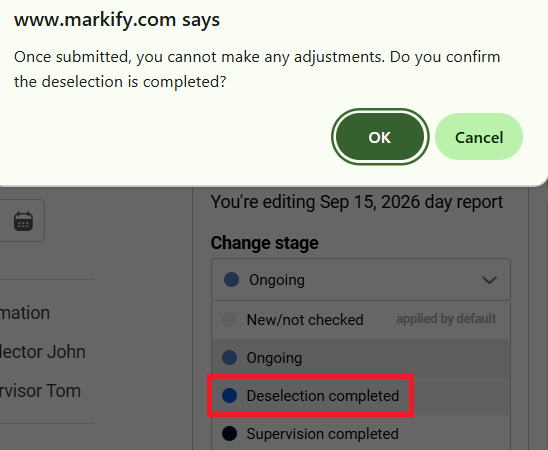
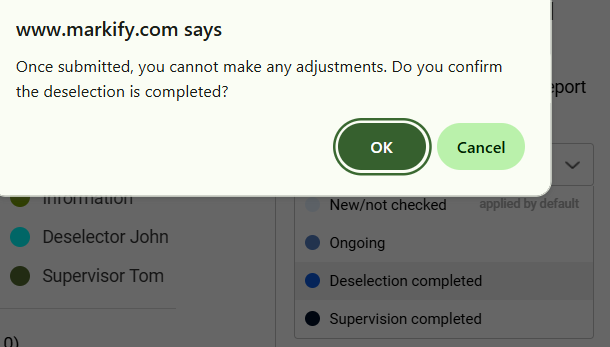
- Deselection completed — set manually by the Deselector when they finished working on that day's results. This action cannot be undone once set — a confirmation pop-up asks to confirm before it is applied.
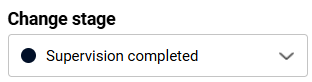
- Supervision completed — set manually by the Supervisor or Owner once the Deselector's work has been reviewed. Only the Supervisor or Owner can change what the Deselector did — for example, unhiding results or hiding additional ones.
Report stage workflow
1.When a new report is delivered, Deselector logs in to their own account, selects the necessary portfolio portion (via selecting the relevant Owner in the dropdown), and does the review.

When starting, they should switch the status from New/not checked to Ongoing.
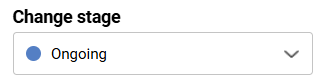
Depending on your preferred workflow, their review may include:
- adding comments or color tags to the report
-using the hide-unhide functionality (see a more detailed scenario for this case below, or jump directly to this section)
- using results Ignore option
When the first level review is completed, Deselector should submit their work by selecting ''Deselection completed'' stage via the report stage control menu.
Once this is done, the report gets frozen down for Deselectors, which means they cannot apply any changes anymore. This is done for the report integrity and clear ownership.
2. If deselector is responsible for several accounts (owner portfolios), they select the next owner account, and repeat the review in the same way, submitting it once done.
3. Supervisor does the second-level review of the report, after Deselectors submitted their work.
Supervisor can undo any of the Deselectors changes, adjust the colors, custom statuses, unhide the previously hidden results, etc, or add more of a review attributes to the report - so this stage supposes that they recheck or finalize the work that has been done earlier.
Since supervisor can see All team members reports at once, it is also possible that they do their review across all accounts at the same time, rather then selecting them one by one - although the latter is also possible.
Once Supervisor has done their review, they sumbit the work by changing the status to ''Supervision completed''.
After that, they cannot edit the report anymore.
4. Report Owner can do the final review, and/or export the results into a report
Report changes history
Actions related to he report stage control can be tracked via the Report changes history secrion.
It can be folded/unfolded by clicking on the Hide/Show button:
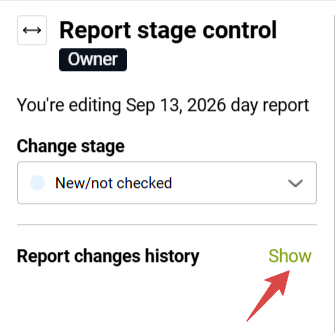
You can see the following information there:
- [stage] -> the report stage set by the Deselector and/or Supervisor
- [report date] -> the day that Deselector is/was reviewing
- [for email address] -> username of the owner account that is being reviewed
- [date & time] -> when this stage was set
- [by] -> Deselector's or Supervisor's name
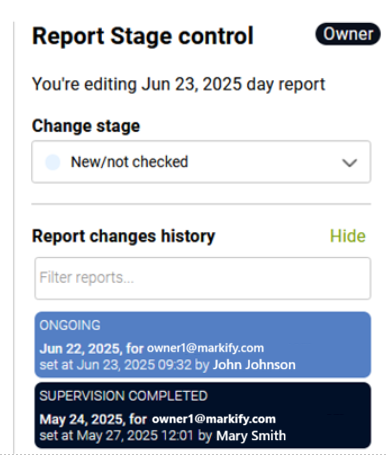
This history is automatically updated every 15 seconds.
Hide/unhide review scenario
For better visibility of the process, deselectors review can be combined with Hide-Unhide functionality and Custom statuses.
This scenario supposes that each deselector gets a personalized Custom status (tag+color) that is used when hiding the results from the main list. This helps the supervisor to easily identify who has been working on the first review of the results.
Here you have a basic article on Custom Statuses: link
And on hide-unhide functionality: link
The additional custom statuses that you create for the team can look like the below in blue:
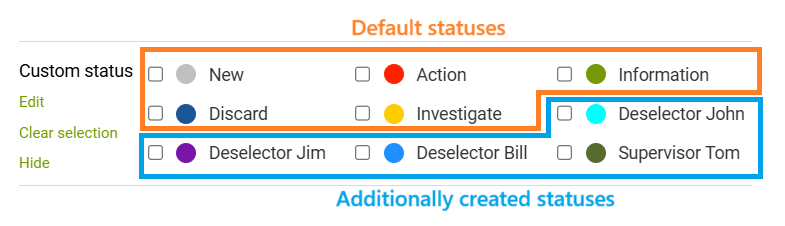
This way, the ownership becomes very transparent.
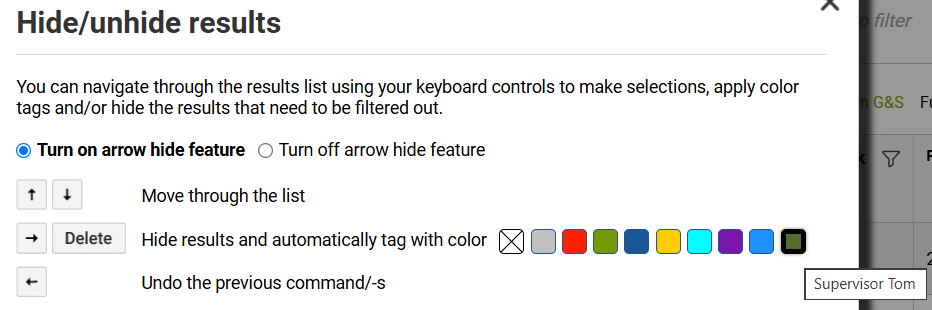
Hide-Unhide pop-up will reflect the same list of custom statuses:
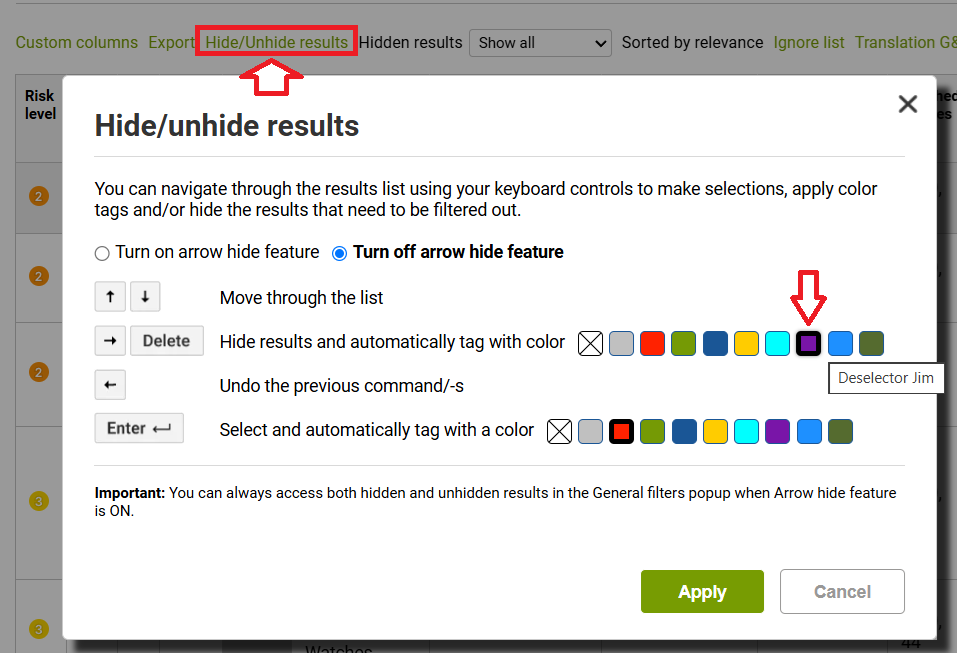
This way, Deselector Jim would know to use his purple status when hiding the results.
Practically, it can look like this:
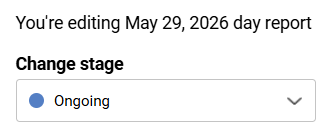
- Deselector logs in to their account, selects the portfolio they are supposed to review, opens the recent daily report, and sets the status to Ongoing, so that it's visible they are working on it
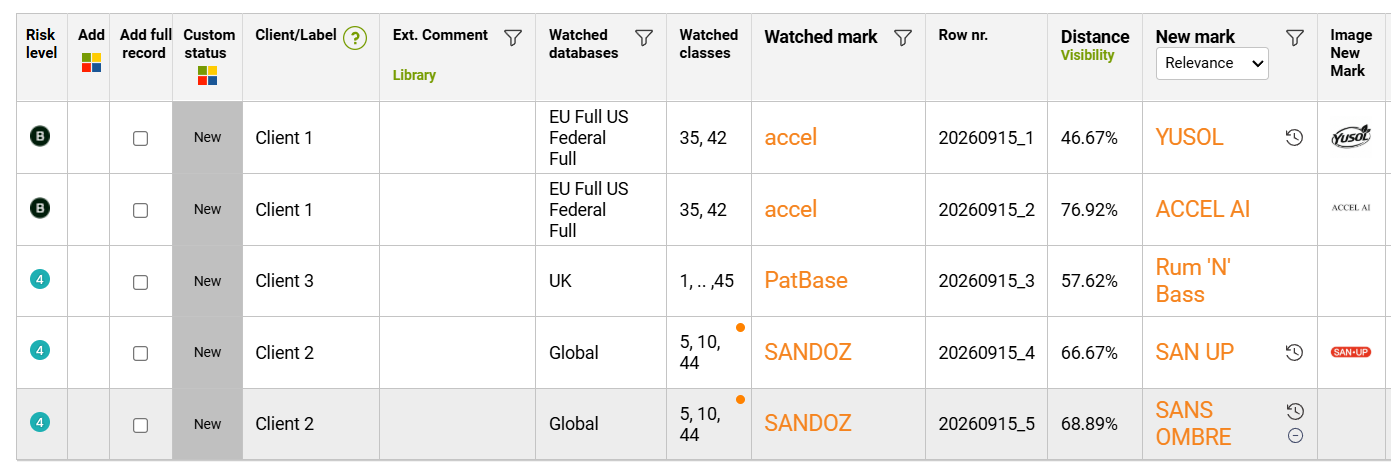
- Next, they check the report. By default, all fresh results are marked with the grey "New" tag:
- Using the Hide/Unhide keyboard navigation, they can hide the results from the main list by clicking ➡ or Delete button
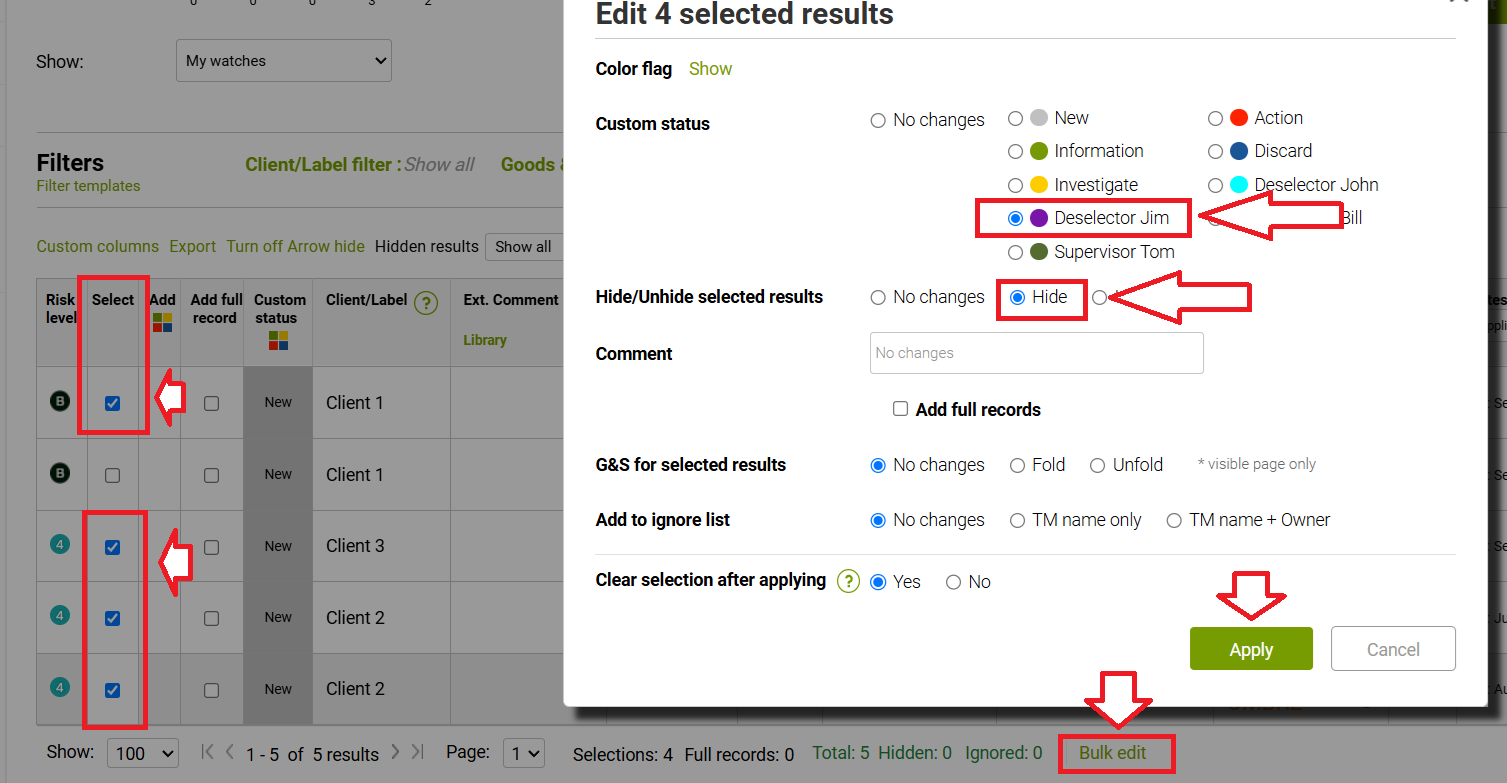
Alternatively, they can also tick the results of results and then use Bulk edit to hide them all at once:
-After the unnecessary results are hidden, only those pending a second-round review will remain visible to a Deselector:
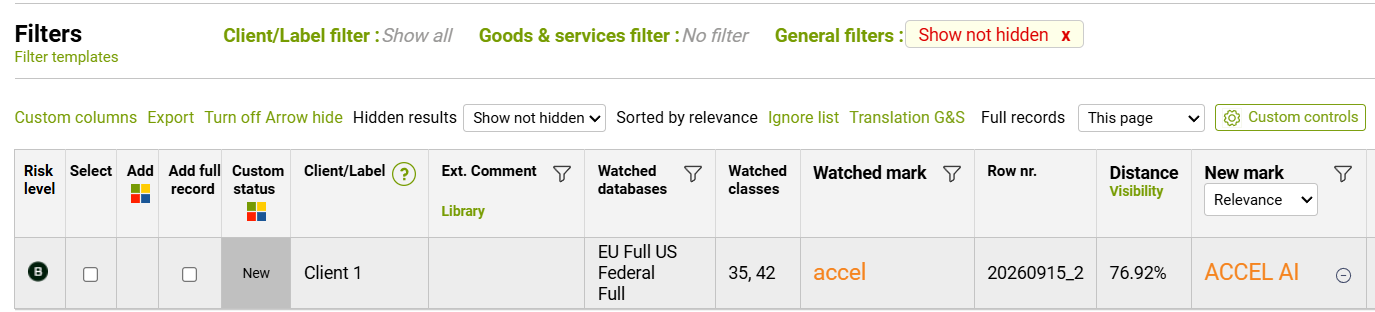
(If any error made, it's still possible to view all results and undo the previous actions)
- Once ready, deselector changes the Report stage review to Deselection completed:
- When Supervisor Tom checks the report, he can see that Deselection has been completed.
He also can very quicky see the remaining results, and if needed, hide some more - they should use their own dark green custom status then:
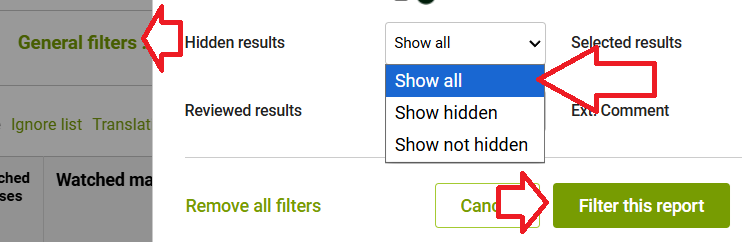
But also, the Supervisor can recheck the full list of results to make sure that nothing really relevant has not been hidden by a mistake. For that, it's needed to to go to General filters and switch the Hidden results filter to "Show all", to see the original list of watches again:
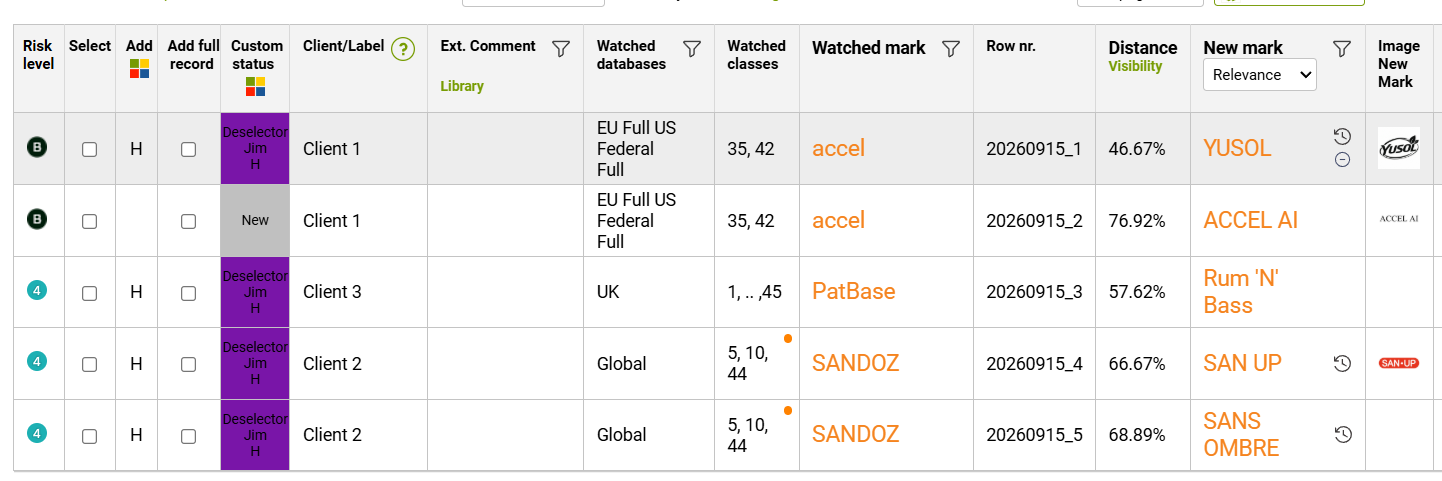
At this point, it is easy to identify that the 4 purple results were hidden by Deselector Jim (note the H for Hidden):
- If the supervisor would like to unhide some of those results, to make sure that the owner later sees them, they can also use one of the two methods:
1) Select all of the results that should be sent back to the 'visible' list, and using bulk edit, set them to "Unhide".
Note that at the same time, the dark green custom status is applied:
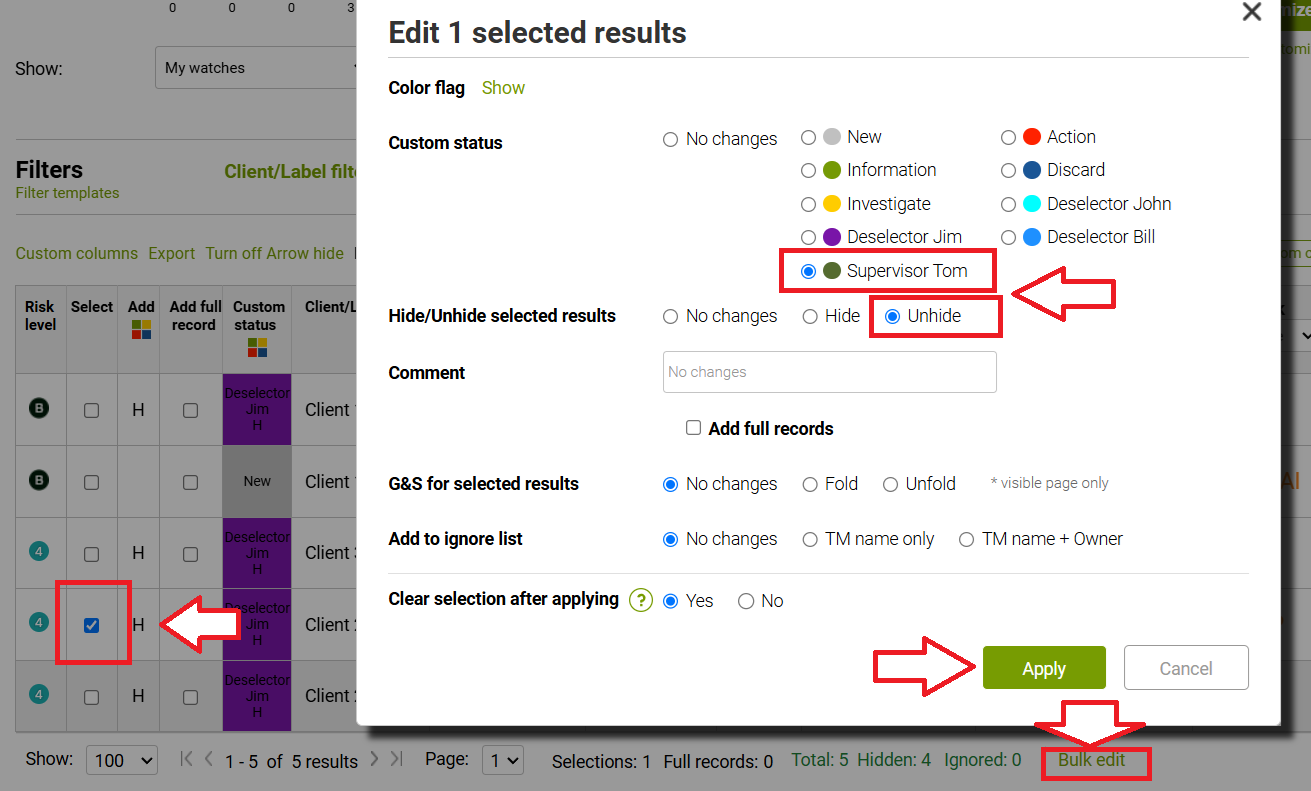
2) Use "Show hidden" filter to review only the hidden results, and use ➡ or Delete button on them. When "deleted" from hidden, results become visible again.
Here is how this list can look like after Supervisor applied their change (depending on the filter applied):

- When Supervision is completed, it is necessary to apply the Report control stage accordingly. After that, supervisor cannot do any more changes to the report:
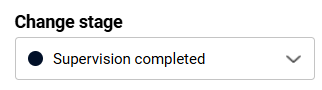
- When Owners log in to their accounts, they can very clearly see the stage of the report, and identify those ready for their review, as they will have the dark color on the calendar:
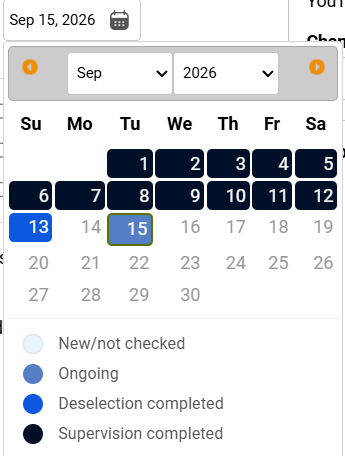
The screenshot above is made on Sept 15th which explains why Sept 16-Sept 30 are so far empty and unclickable. Sept 14 report is also empty which can be normal - no new relevant results were detected.
Also, it shows that the results form Sept 1 to Sepr 12 have been reviewed by Supervisor, and are ready to be checked by the Owner. But report from Sept 13 only has been reviewed by Deselector (not yet by a Supervisor), and the report from Sept 15 is still 'ongoing' the deselectors review.